






Installation Instructions mod Titanium Wars Mod for Definitive Edition and Soulstorm
The mod may contain a large number of files, make sure you have downloaded the correct ones for your version of the game.
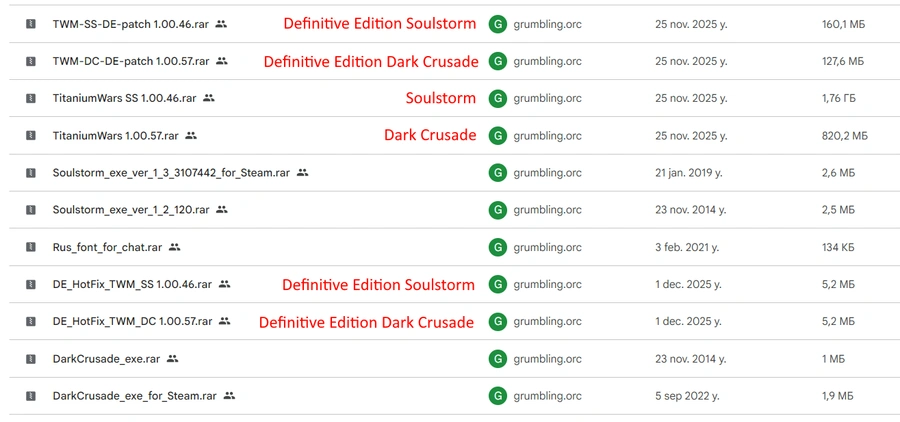
Dawn of War Soulstorm
Move the contents of the archive to the root directory of Dawn of War Soulstorm.
(Optional) If you want to play the campaign and have cutscenes in it, copy the Movies folder from the DXP2 directory into the Titanium_Wars_Mod_SS folder.
Launch the game, go to the "Game Manager" menu and select the mod.
Alternative launch method: create a shortcut to the executable, open its properties and add the parameter -modname TitaniumWars_SS or with additional settings -forcehighpoly -nomovies -modname TitaniumWars_SS, so that you get an entry like this: "D:\Games\Dawn of War Soulstorm\Soulstorm.exe" -forcehighpoly -nomovies -modname TitaniumWars_SS"
You can also change the shortcut icon to the mod icon, which is located in the Titanium_Wars_Mod_SS folder under the name titanium.ico. Simply open the shortcut properties, then click "Change Icon" and select that icon.
Play!
Important. If you are updating the mod to a new version, before installing the new version delete the titaniumwars_ss folder in the Profiles folder, which is usually located inside Profile1. This is necessary for the correct installation of hotkeys and removal of old saves. Using old saves in new versions of the mod is strongly discouraged.
Dawn of War Dark Crusade
Move the contents of the archive to the root directory of Dark Crusade.
(Optional) If you want to play the campaign and have cutscenes in it, copy the Movies folder from the DXP2 directory into the Titanium_Wars_Mod folder.
Launch the game, go to the "Game Manager" menu and select the mod.
Alternative launch method: create a shortcut to the executable, open its properties and add the parameter -modname TitaniumWars or with additional settings -forcehighpoly -nomovies -modname TitaniumWars, so that you get an entry like this: "D:\Games\Dawn of War Dark Crusade\DarkCrusade.exe" -forcehighpoly -nomovies -modname TitaniumWars"
You can also change the shortcut icon to the mod icon, which is located in the Titanium_Wars_Mod_SS folder under the name titanium.ico. Simply open the shortcut properties, then click "Change Icon" and select that icon.
Play!
Important. If you are updating the mod to a new version, before installing the new version delete the titaniumwars folder in the Profiles folder, which is usually located inside Profile1. This is necessary for the correct installation of hotkeys and removal of old saves. Using old saves in new versions of the mod is strongly discouraged.
Dawn of War Definitive Edition — Soulstorm
Move the contents of the archive to the root directory of Dawn of War Definitive Edition.
Be sure to install the patch (or patches, if there are multiple) by moving the contents of the patch archive to the root directory of Dawn of War Definitive Edition.
You can also install TWM hotkeys. To do so, copy the file "..\Titanium_Wars_Mod_SS\Data\defprofile\keydefaults_twm.lua" to the profile folder: "C:\Users\YourUserName\AppData\Roaming\Relic Entertainment\Dawn of War\Profiles\Profile1". Here "YourUserName" is your Windows account name. Profile1 is your first profile in DoW-DE (copy the TWM hotkeys to other profiles if you have more than one). Note: the current version of TWM does not support DoW-DE hotkeys. Select TWM hotkeys in the game options after installing them to the Profiles folder.
(Optional) If you want to see the Soulstorm campaign intro cutscenes, copy the Movies folder from the DXP3 directory into the Titanium_Wars_Mod folder.
Launch the mod through the Mod Manager inside DoW DE.
Alternative launch method: If you want to launch the mod through a menu similar to Soulstorm, you can add a parameter to the DoW-DE launch properties in Steam or by creating a shortcut to the executable: -modname TitaniumWars_SS. You can also add the parameter to skip the intro: -nomovies.
Play!
Important. If you are updating the mod to a new version, before installing the new version you should perform the following steps:
Delete the Titanium_Wars_Mod_SS folder, as well as the files TitaniumWars_SS.module and localexec.lua from the root directory of the game.
Delete the titaniumwars folder in the Profiles folder, which is usually located inside the Profile1 subfolder. This is necessary for the correct installation of hotkeys and removal of old saves. Using old saves in new versions of the mod is strongly discouraged.
(Optional) To remove the TWM logo, simply delete the file in the game folder at the path "..\Engine\Data\art\ui\textures\bg_fe_loading.tga"
Dawn of War Definitive Edition — Dark Crusade
Move the contents of the archive to the root directory of Dawn of War Definitive Edition.
Be sure to install the patch (or patches, if there are multiple) by moving the contents of the patch archive to the root directory of Dawn of War Definitive Edition.
You can also install TWM hotkeys. To do so, copy the file "..\Titanium_Wars_Mod\Data\defprofile\keydefaults_twm.lua" to the profile folder: "C:\Users\YourUserName\AppData\Roaming\Relic Entertainment\Dawn of War\Profiles\Profile1". Here "YourUserName" is your Windows account name. Profile1 is your first profile in DoW-DE (copy the TWM hotkeys to other profiles if you have more than one). Note: the current version of TWM does not support DoW-DE hotkeys. Select TWM hotkeys in the game options after installing them to the Profiles folder.
(Optional) If you want to see the Dark Crusade campaign intro cutscenes, copy the Movies folder from the DXP2 directory into the Titanium_Wars_Mod folder.
Launch the mod through the Mod Manager inside DoW DE.
Alternative launch method: If you want to launch the mod through a menu similar to Dark Crusade, you can add a parameter to the DoW-DE launch properties in Steam or by creating a shortcut to the executable: -modname TitaniumWars. You can also add the parameter to skip the intro: -nomovies.
Play!
Important. If you are updating the mod to a new version, before installing the new version you should perform the following steps:
Delete the Titanium_Wars_Mod folder, as well as the files TitaniumWars.module and localexec.lua from the root directory of the game.
Delete the titaniumwars folder in the Profiles folder, which is usually located inside the Profile1 subfolder. This is necessary for the correct installation of hotkeys and removal of old saves. Using old saves in new versions of the mod is strongly discouraged.
(Optional) To remove the TWM logo, simply delete the file in the game folder at the path "..\Engine\Data\art\ui\textures\bg_fe_loading.tga"